This blog is adapted from our Google Ad Grants webinar with the Google Team and has been reviewed by the same subject matter experts – thank you to Ben Wise, Keira Nguyen and Samantha Collins. If you would like to watch the webinar or review the slide deck, please find them here.
Introduction to Google Ad Grants in 2026
Google has long acknowledged the importance of our nonprofit sector. Charities touch so many aspects of our society, bringing together community, supporting those in need and so much more!
With that in mind, Google for Nonprofits was established in 2011 to empower charities and nonprofits to focus more on their mission by offering discounted or free products that help them to maximize their reach and impact.
Today, 350,000 nonprofits make use of different parts of the Google for Nonprofits program across nearly 70 countries and that number continues to grow.
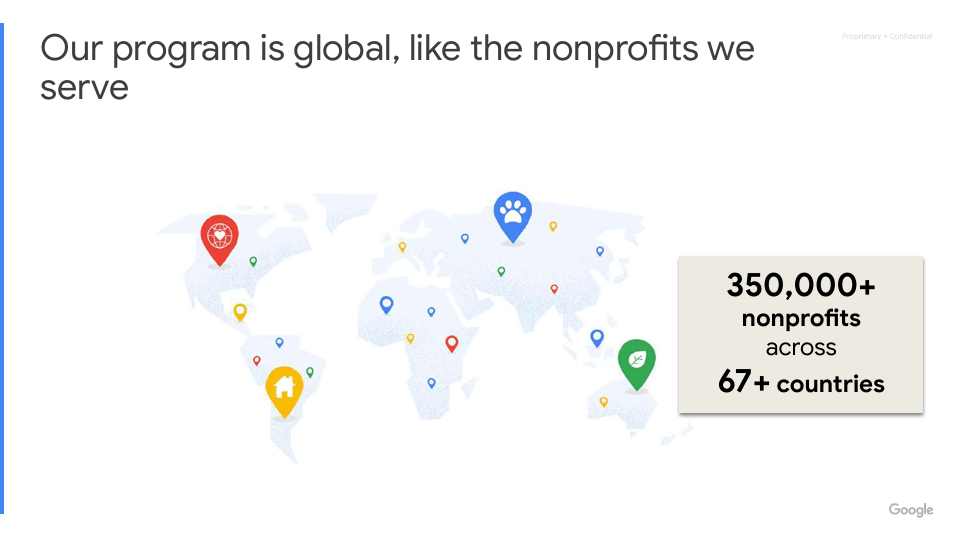
Although we’re here to talk about Google Ad Grants, it’s important to note that it is part of the Google for Nonprofits program, alongside Google Workspace, YouTube and Google Earth and Maps.
- Google Workspace – Enables charities to collaborate securely across Gmail, Docs, Drive, Calendar, and Meet for free. If you need more capabilities, Business and Enterprise tiers are available at a discounted, non-profit rate.
- Ad Grants – Gives access up to $10,000 USD per month in Google Search ad credit to raise awareness, recruit supporters, and drive donations.
- YouTube Nonprofit Program – Provides specialized charity features like Link Anywhere Cards, Creator Academy Access and more. Helps charities use video storytelling and YouTube’s reach to amplify their cause and connect supporters with ways to give.
- Google Earth and Maps – Visualize your impact and help communities find nearby programs, services, and resources.
The mission behind Google Ad Grants is to connect people to causes through free Google Ads Campaigns. There are 85,000 charities in Canada and 33 million Google Search Users in Canada. The grant provides up to 10,000 USD every single month, in search advertising.
Eligibility & Account Activation
The umbrella program for Google Ad Grants is Google for Nonprofits. If you have a Google for Nonprofit account, you already have access to Google Ad Grants though it may not be activated yet.
Visit the Google for Nonprofits page and hit “Get Started” in the top right corner. You will be asked a short number of questions such as where your charity is based, your charity registration number, and contact information. This will be verified in 2-14 business days and you’ll be able to activate the products once verified.
Note: academic institutions, healthcare organizations and governmental entities are not eligible for Google for Nonprofits.
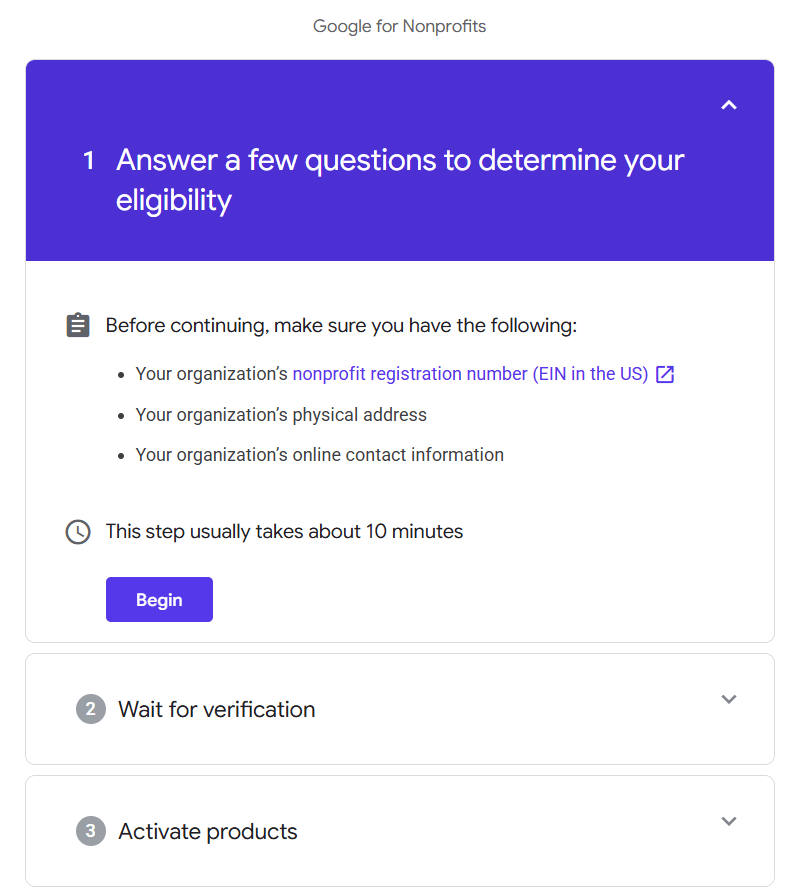
Following verification, you will be able to activate the products and services from Google for Nonprofits.
Q: What should I do if I don’t know if our organization has a Google for Nonprofits account or if we have lost access?
A: This is a common question from charities. Because of high turnover, many charities lose track of their accounts. You can sign in on the Google for Nonprofits page using the most likely email address or the charity affiliated email account you would like to be associated with the account.
- If the email you are using is already associated with the account, you will be able to recover the account through a “forgot password process”.
- If the email is not associated with the organization’s account, the email will be added as an administrator for the organization within Google for Nonprofits.
Q: What should I do if I have lost access to the Google Ad Grants account?
A:
- Log into your Google for Nonprofits Dashboard and verify whether Google Ad Grants has been activated by your organization. From the dashboard, you will be able to locate your 10-digit Customer ID that has been assigned to your Google Ad account.
- Login to Google Ads with likely email addresses and crosscheck against the ID, to see whether you have access to the correct Google Ad account where the grant is applied.
- If you do not have access to the Google Ad Grant account following these steps, you can submit an Ad Grants account access help form. The team will be able to support you better if you are able to provide a login email or the 10-digit Customer ID.
How has Search Changed in 2026?
At Google, AI is seen as driving an expansionary moment for Search. There have been 5 trillion searches on Google annually and this number continues to grow. However, the way in which people search has changed:
- Users ask much longer questions. 2-3x the length of a traditional search
- AI Overviews now has over 2 billion monthly users across more than 200 countries
See below on AI Max, on how Google is adapting specifically to this change in search behaviour.
Google Search Ads 101
The user journey starts with a search, they click on a result (either organic, paid, or even within the AI overview) that leads to your website where they hopefully take an action.
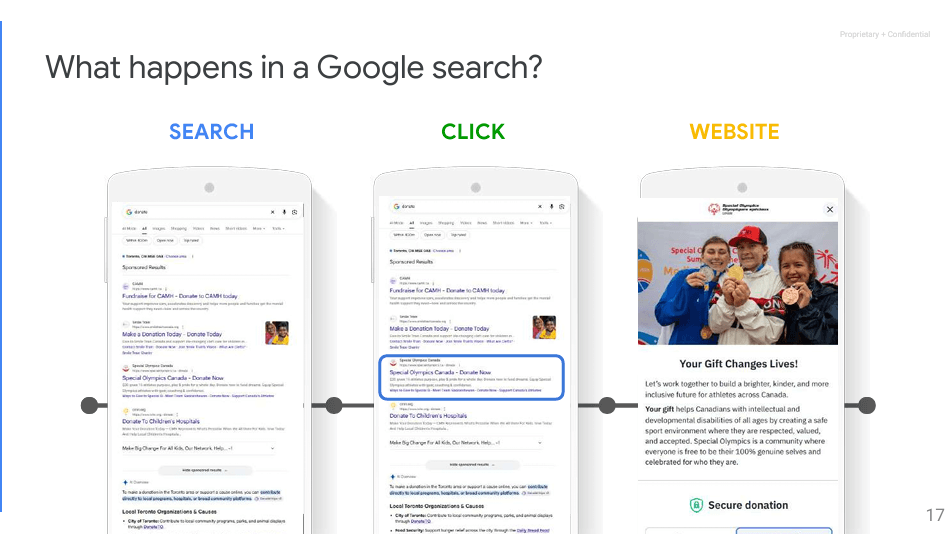
Google Ads can be used to help nonprofits get results:
- Register for an event
- Sign a petition or register to vote
- Purchase a membership, a ticket, or a service
- Watch a video or download content
- Sign up for a newsletter or call
- Make a donation
Google Ad Grants requires you to measure your results through “conversion tracking”. This can look like tracking a thank-you page URL where users are directed after they complete an action or a more sophisticated “tagging” system through Google Analytics and Google Tag Manager. You can learn more about setting up conversion tracking here.
Conversion Tracking Glossary:
- Conversions: number of times your goal is met
- Conversion value: the assigned value you give (e.g. each registrant is worth $10), or a dynamic amount donated/paid
- Cost per acquisition (CPA): how much it costs for someone to take the action
- Conversion value/ Cost: the return in monetary terms on advertising spend
Campaign Setup & Structuring Best Practices
Two recommended search campaigns to setup as your base are:
- Branded Search: Bidding on keywords based on your brand name to show ads to people directly searching for you
- Non-Brand Search: Bidding on keywords about your organization. Consider campaigns like “blindness charity” or “charity supporting children’s literacy”.
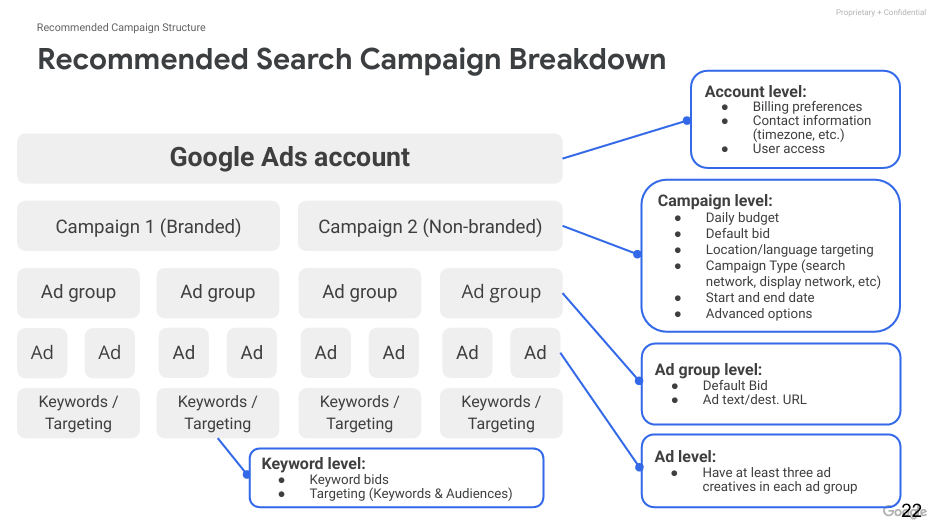
Your Google Ad Account is organized into account, campaign, ad groups, ads, keywords/targeting. Let’s break this down:
-
- Account: Administrative level settings like access permissions or timezone
-
- Campaigns: Each campaign should have a specific objective. For example, this could be “event signup” or increasing downloads of your “supporting your child with blindness” resource etc. At the campaign level, you can set:
- Budget
- Default bid
- Location/language targeting
- Campaign type
- Start and end date
- Campaigns: Each campaign should have a specific objective. For example, this could be “event signup” or increasing downloads of your “supporting your child with blindness” resource etc. At the campaign level, you can set:
- Ad Group: Under each campaign, you can have multiple ad groups, which are groups that will share the same keywords and ads. Each ad group needs to have a minimum of 2 Responsive Search Ads (RSAs) as per policy.
-
- Keywords:
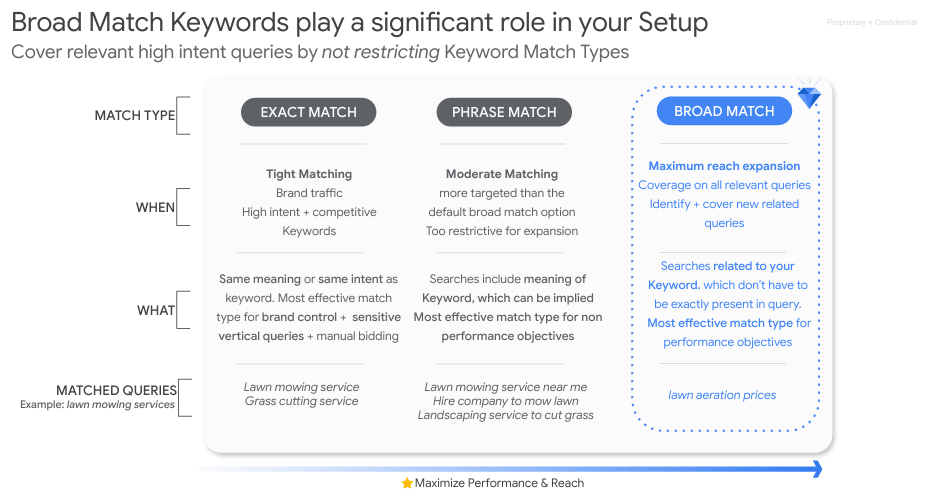
Keywords are the way ads are targeted. You can use the keyword planner tool within Google Ads to check search volumes for likely keywords, discover new ones and start adding similar keywords to a group. As a subject matter expert, you may already have a good feel for the likely keywords users are using to find you. You can set the match type for keywords to “broad match”, “phrase match”, or exact match”.Keywords in the same ad group might be “resources for parents of blind children”, “resources for parents of visually impaired children”, and “parent resources for blind children” while “parenting a blind child” or “parenting a child with visual impairment” might be grouped into a different ad group with its own matching ads.
- Ads: This is what users will actually see. Google allows you to create “responsive search ads” where you will be able to input 15 headlines and 4 description options which will adapt to display the “best” ad.
- Keywords:
Your ads should match closely to the keywords you are targeting. For example, if the ad group is centered around “parent resources for blindness”, the headlines might repeat this “Resources for Parents of Blind Children” so users know immediately that the link is relevant.
Other things to note:
-
-
- Assets Types: As a user, you may have noticed that some ads have “other assets” beyond headlines and descriptions such as sitelinks, location information or a number to call, that provide additional information to the ad beyond the headline and description. You can add relevant extensions across the account or only to certain campaigns.
-
- Sitelinks: Route to high-value pages like your Programs or Ways to Give page
-
- Callouts: Highlight key credentials like when the organization was established or number of people served
-
- Structured Snippets: Provide a list of programs, services etc.
-
- Image Assets: Add your logo, or other visual asset
-
- Call Assets: Connect searchers to staff helplines
-
- Lead Forms: Collect sign-ups straight from the search page
-
Tip: You can leverage AI tools such as Google Gemini to support with writing ad copy and structuring your account. For example, here is a sample prompt: “Follow the best practices on the attached document and generate a recommended ad structure for an Google ad grant account with Search & Pmax campaigns along with suggested ad copy for this non-profit [insert website URL]”
You can use the webinar slide deck: here as the attached document.
AI Max – 3 Core Features
As mentioned, AI is changing the search landscape. AI Max is Google’s answer to some of the changing behaviours. There are the three core features of AI Max:
-
-
- Search Term Marching (STM) – helps you go beyond keywords, finds relevant users based on all inputs (keywords, creatives, URLs)
- Optional: Text Customization (TC) – uses landing page content or existing ad copy to create relevant ads in real time. If you’d like to retain tighter control on how your ads are written, keep this off or you can provide guidelines e.g.
-
| Effective Guideline & Messaging Prompts | Ineffective Guideline & Messaging Prompts |
|---|---|
| “Don’t imply our community programs require a fee.”
This restriction ensures terms like fee, cost, cheap, or buy don’t appear in your asset when describing free community services. |
“My ads should bring joy”
Joy is a vague description that is subjective. Provide a more direct phrasing of how you want the text to be written. |
| “My non-profit name should be spelled as ‘OrgName’ or ‘Orgname’.”
This is a clear, direct guideline ensuring your non-profit brand name is spelled accurately and stylized as expected. |
“When targeting audiences in the ages 30–45, say …”
Currently, messaging restrictions do not support this. Create a different ad group or campaign to create specific messaging for target audiences. |
| “Refer to supporters as donors or volunteers, never customers.”
This is a clear restriction that ensures appropriate mission-driven terminology is maintained across generated ads. |
“My ads should deliver 1000% ROI”
While our system is designed to drive impact for each non-profit, we cannot promise specific ROI from text guidelines. |
| “Our brand tone is compassionate, transparent, and direct.”
Descriptions of your non-profit’s tone help generate copy that resonates with supporters. Be authentic and descriptive. |
“Never include mentions of any brands, other than [OrgName]. My non-profit brand name should be spelled as ‘OrgName’ or ‘Orgname’. Never mention any city names in my ads.”
Break up the requirements into separate guidelines. |
| “If promoting donations, always include ‘Tax Receipts Provided’.”
This provides essential donor transparency. Unless fundraising ads mention tax receipt eligibility, the asset will not serve. |
-
-
- Optional: Final URL Expansion (FUE) – selects the best landing page from your site based on the query – requires TC to be enabled.
-
You can toggle on AI Max for specific campaigns. You will be prompted to make a decision as part of the search campaign setup process, or you can turn it on for an existing campaign by editing it.
PMAX – Performance Max for Ad Grants
Beyond Search campaigns, Performance Max is now available for Google Ad Grants accounts.
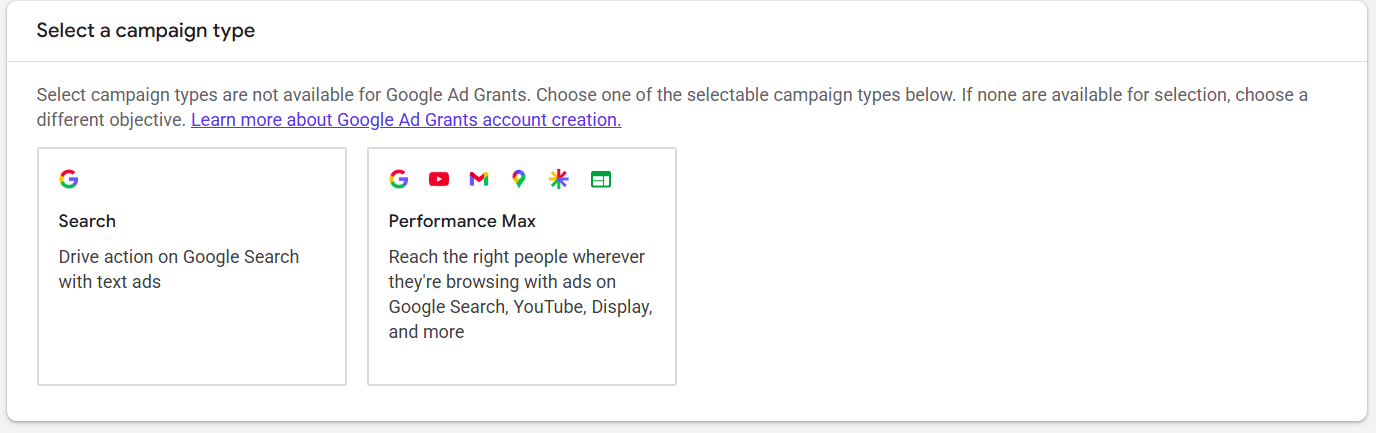
Traditional search campaigns are keyword driven, precise and reactive.
PMAX campaigns are goal driven, broader and more proactive. They analyze the search intent landscape and identify potential donors who might be searching for related community causes, educational resources, or local initiatives that you haven’t explicitly added to your keyword list.
Search will capture the intent you already know about, but PMAX discovers the high value intent that you haven’t thought to bid on yet. This is particularly transformative for nonprofit teams because it reduces the burden of keyword research and optimization.
For PMAX campaigns, instead of developing ad groups with ads and keywords, you will be developing “asset groups” with assets (headlines, descriptions, and imagery) and “signals” (search themes like “adopt a senior cat”/animal shelter”)
It requires three inputs to be developed:
-
-
- Conversion goals: add the results you want to see the campaign optimize towards
-
- Creative assets: add headlines, descriptions, and imagery
-
- Signals: provide information on who you are looking to connect with
- “search themes” can be thought of as broad topical categories rather than restrictive exact match keywords. For instance, if you’re operating an animal shelter, you might want to add things like dog adoption, GTA or fostering senior cats and so forth
- “audience signals” such as an anonymized past donor list, newsletter subscribers, or people who engage with your CanadaHelps donation page
- Signals: provide information on who you are looking to connect with
-
Learn more about CanadaHelps Custom Donations Forms and how it can help create a branded donation experience.Want to build easy-to-use donation forms?
Google Ad Grants Guidelines
To ensure a high quality experience for Google Search users, Google Ad Grants must adhere to specific account compliance rules.
-
-
- No single-word keywords. Your own brand keywords, approved medical conditions and some other cases are deemed an exception to this policy.
-
- No overly-generic keywords. for example: ‘“free videos”, “e-books” or “today’s news.”
-
- Keyword Quality Score* must be +2. Keywords must be relevant to the landing pages where ads are pointing traffic towards.
-
- Must have a 5%+ CTR monthly. This requirement exists to ensure your ads are relevant to the keywords you target.
-
- Must have valid conversion tracking. There needs to be at least 1 conversion each month that tracks a meaningful event (sign-ups, donations, etc.)
-
- Must have at least 2 ad groups/campaigns. Consider grouping relevant keywords together in separate ad groups to funnel searches on keywords to relevant ads. This helps improve CTR.
-
- Must have at least 2 sitelink assets. It’s recommended to have at least 4 sitelink extensions. These provide more opportunities for users to click on your ad.
- Must respond to a program survey. This is an annual survey that will help us improve the Google Ad Grants program
-
*Quality Score: an estimate of the quality of your ads, keywords, and landing pages. The more compelling nature of the ad copy, the better the relevance of your ads to the keywords and your landing page experience, the better your quality score. Your ad needs to provide a relevant search experience for the user.
-
-
- Focus on the user benefits
- Tie your keywords to ad copy
- Use words from your website
- Avoid generic language and use specific CTAs
-
Over time, account optimization and management can involve negating out keywords that are attracting irrelevant searches, getting even more nuanced with the tailoring of your ads and keywords, adding keywords and updating ad copy and assets. Management of the account should be ongoing and not just a set and forget.
If your account is not in compliance, you may risk suspension.
Combining Google Ad Grants with Paid Google Ads
There are certain constraints for Google Ad Grants accounts. Google Ad Grants and Paid Google Ads are complementary and help close gaps as a Google Ad Grants account will never outbid ads from a Paid Google Ads Account. It also allows you to leverage more campaign types, bidding opportunities and more.
Q&A
This last section answers some of the questions we received from our audience that may not have been answered above:
-
-
-
Eligibility, program rules, and account access
-
-
- Do Canadian organizations qualify for Google Ad Grants? Yes, Google Ad Grants under the Google for Nonprofits program, is available in Canada.
-
- Is the grant open to all charities? No, there are some restrictions for educational institutions, health organizations and government entities.
-
- What rules or terms do we need to follow to use Google Ad Grants? You can review the Google Ad Grant policies here. General Google Ad policies must also be followed.
-
- Can we use it with more than one website? It can be used with more than one website but the charity must own the website and the websites must comply with Google policies, for example, be malware free.
-
- Is there an expiry date if a Google Ad Grant has been approved but hasn’t been used? No, there is no expiry date as the program continues indefinitely.
-
-
-
-
Setup, management, and time commitment
-
-
- What is the workload required to get this going/ how long does it take to set up and maintain a campaign? It takes roughly 1-7 days for setup and validation, 8-14 days for build and measurement and ongoing management is recommended, at least twice a month. However, this can still vary depending on the comfort level of the user with Google Ads.
-
- What can small charities do if the setup, management and time commitment is beyond the team’s capacity? Not everything needs to be done at once. Charities may also choose to use pro bono account support or enlist the help of professional account managers.
-
- Can we save progress on a campaign draft without completing the whole thing at once? Yes, campaign drafts are saved automatically.
-
-
-
-
Fundraising goals, nonprofit use cases, and other
-
-
- How easy is it, and what would it cost, to use this program to increase awareness and support for XYZ? The Google Ad Grants program is free to charities, its ease of use and effectiveness depends on the way the account is managed.
-
- How should a charity use Ad Grants if we’re not open to the public and don’t rely on customers, reviews, or foot traffic? Try to think about the resources and searches that those interested in your mission may be looking for. For example, a wildlife shelter that does not have any interaction with the public, could still attract supporters by developing resources for people to support wildlife conservation in their backyard.
-
- Why choose Google Ads over Meta ads? What are the differences? Google Search Ads are search intent based whereas targeting for other platforms are based on demographic or behavioural targeting. One is not inherently better than the other, they have different strengths and parts to play in the user journey.
-
- What are the implications for data sovereignty and privacy for nonprofits and their supporters? To use Google Ads compliantly, Canadian nonprofits must update their privacy policy to disclose US data transfers, deploy an opt-in cookie banner using Google Consent Mode to block tracking prior to user approval, disable remarketing lists built around sensitive issues (like health or hardships) under Google’s Personalized Advertising Policy, and strip donor PII from donation page URLs.
-
Key Resources & Next Steps
-
-
- Google Ad Grants Website: The official homepage for the program, providing an overview, eligibility criteria, and links to apply.
- Google Ad Grants Help Center: The primary source for official documentation, how-to guides, policies, and troubleshooting.
- Google for Nonprofits Help Center: Since Ad Grants is part of the Google for Nonprofits program, this site contains broader information about eligibility and other available tools.
- Tips for success with Google Ad Grants: A key page within the help center outlining best practices for account structure, ad creation, keyword selection, conversion tracking, and bidding.
- Google Ad Grants Community Forum: A public forum to ask questions, share tips, and learn from other Ad Grants users and product experts.
- Ad Grants Certified Professionals Community Directory: If you need hands-on help, this directory lists agencies and consultants who specialize in managing Ad Grants accounts.
- You can find links to this directory within the “Tips for success” page.
- Google Ad Grants Setup Guide & Video Lessons: Step-by-step instructions and video tutorials on launching successful campaigns.
- Often linked within the “Tips for success” page and throughout the Ad Grants Help Center.
- Understanding Budgets and Bidding in Ad Grants: Explains the $10,000 USD monthly budget, daily spending limits, and recommended Smart Bidding strategies.
- Google Ad Grants Access Form: Utilize this form to gain access to your Grants account if you lost access.
-